HTML Links (last updated Sept 21, ,2017)
Here are the videos teaching HTML links. I suggest reading the material below before viewing the videos. After you have viewed the videos, read the material below again. It will be easier to understand after you have seen the videos.
video: link to an MP3 file (recording)
video: Link to a local HTML file (in same folder as html file with link)
video: Link to a URL ( to a web address, an HTML file on a remote server)
A web page consists of an HTML file (such as myPage.html) and whatever files ( usually pictures, audio files, and/or video files) it accesses. A web page may also contain “links” to other web pages.
A web page is displayed on a computer when the browser program on that computer ( such as Google Chrome, Firefox, or MS Edge) opens an HTML file. Links in a page are things ( text or images) the user clicks to cause the browser to open whatever the link is connected to.
This lesson will explain how to put two kinds of links into a web page:
I suggest that you first review the basic introduction to HTML by clicking here.
I suggest that you then review some of the HTML files by working with the page displayed by clicking here.
Assuming you read the introduction to HTML and viewed some sample files, you should now know that an HTML page consists of both (a) HTML tags like <body> and </body> and (b) the page content entered between tags. Some tags refer to other files, such as files containing pictures to be displayed on a page or files containing audio recordings (voices or music).
For the time being I recommend that those files (pictures and audio) be put in the same folder as the HTML file. If you would like to review how files and folders work, click here.
The files and folders review gave examples of web pages that display pictures by using the “<img>” tag. Here is a line from an HTML page using this tag:
<img src="minecraft.jpg">
The HTML file (such as “page_w_image.html”) containing that link and the file referred to (“mincraft.jpg”) should both be in the same folder.
Links to Audio Files:
We have been using “.jpg” picture files (also called “image” files). We will now be using “.mp3” audio files. I can make a recording of my voice and save it into a file with a name like “myVoice.mp3”.
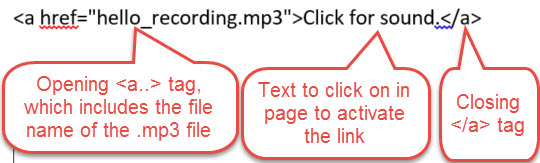
The HTML code to “link” to an audio file uses <a> and </a> tags and looks like this:
As noted, there are three parts to this link:
Click here to see a web page with a link to an audio file
Click here to see the HTML code of the page that links to an audio file
Links to other web pages:
When a user clicks on a link to another web page the browser will display the page referred to in the link.
Link to local page:
Here is a sample link to another HTML file in the same folder as the one with the link:
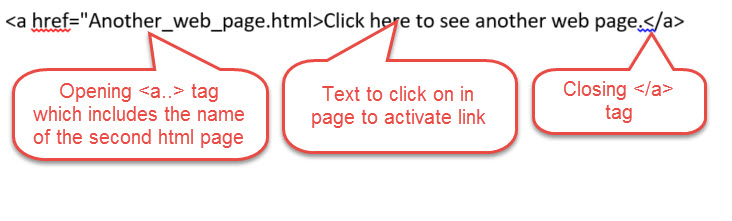
NOTE: The HTML file named "Another_web_page.html" had to be created and put in the same folder as the HTML page that links to it.
Click here to see the page that contains this link. (the current page will be replaced by the new one when the link is clicked)
Click here to see the HTML code for that page
Click here to see the HTML code for "Another_web_page.html"
Link to a page on a remote server:
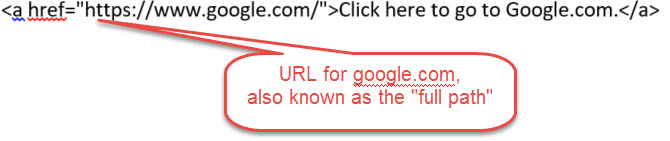
Here is a sample of a link to a web page on a remote internet server. Rather than just giving the file name of the HTML page, this link gives the URL (Universal Resource Locator) for that page. This is the “full path” to that page.
Click here to see the page that contains this link.
Click here to see the HTML code for that page
One More thing to learn today:
When a user clicks on a link to another web page, either of two things can happen:
The links shown above are set up to replace the current page with the new one.
Here is how the most recent link would be modified so that the new page is opened and the current page is kept open. This is done by adding target="_blank" in side the opening <a…> tag.

Click here to see the page that contains this link.
Click here to see the HTML code for that page